Source Data
Source Data represents the definition of the structure of the data that is to be loaded by Jobs. This configuration allows you to specify all the fields/columns that will be loaded into our APIs. For example, a field can represent an SQL column or a XML tag.
This article only explains how to create a Source Data. In order to load data into our applications, more configuration is necessary. For more information, please refer to this article.
In order to view and configure Source Data in QuartzIQ, you must have the required application roles:
- QX-Admin
- IQ-Admin (only if you want to create Source and Target Data in order to input data for QuartzIQ)
View all Source Data Modify a Source Data Create a new Source Data
View all Source Data
Navigate through the side menu in QuartzIQ and select Settings > Source Data.
You should now see a list of all Source Data already configured in the application. You can also use filters to find a specific Source Data or use the search bar to search by name.
Source Data list

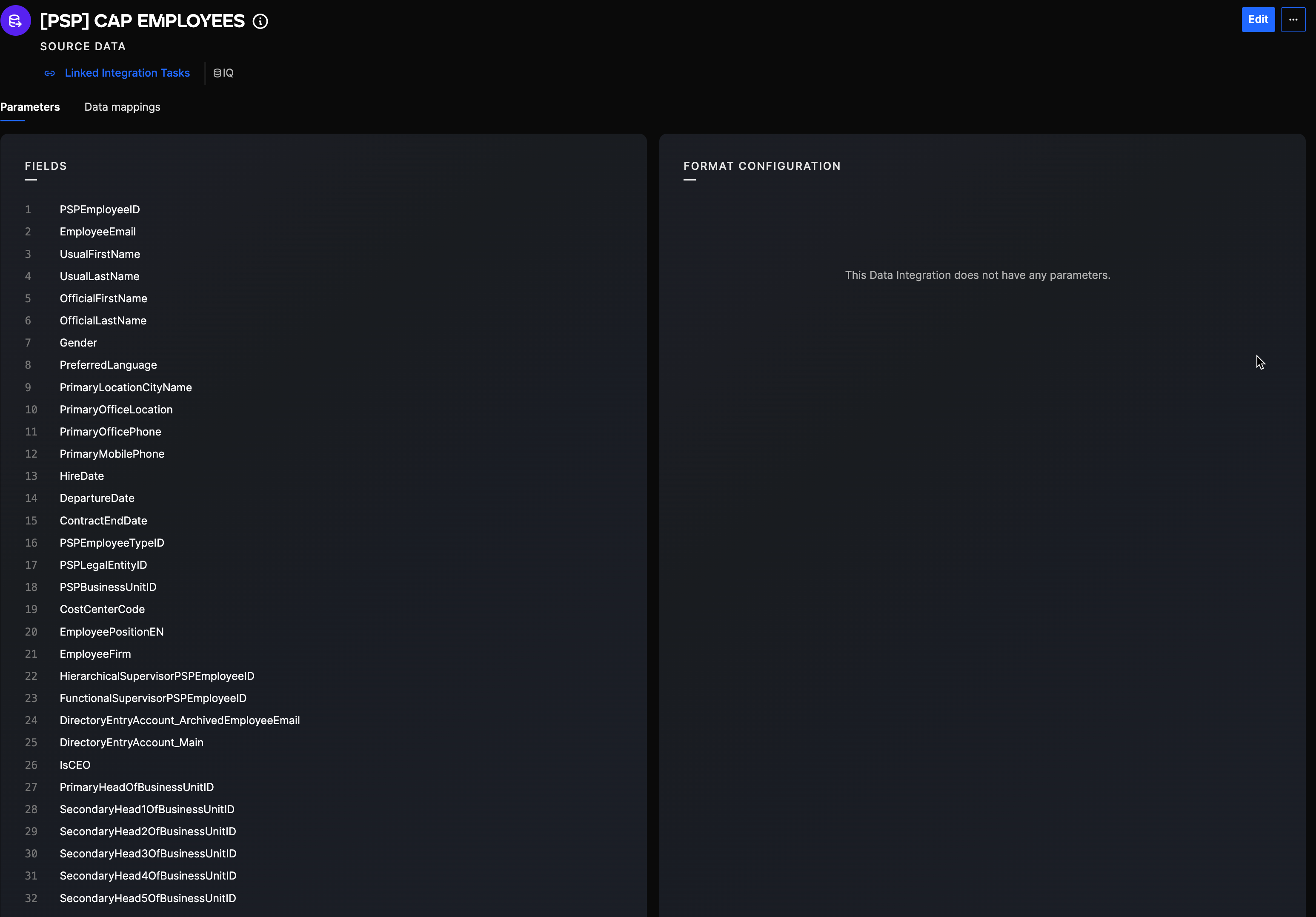
You can click then on any Source Data to see its configuration details and its fields. You can also view with which Source Data it is mapped with using the "Connection mappings" tab.
Source Data details
Modify a Source Data
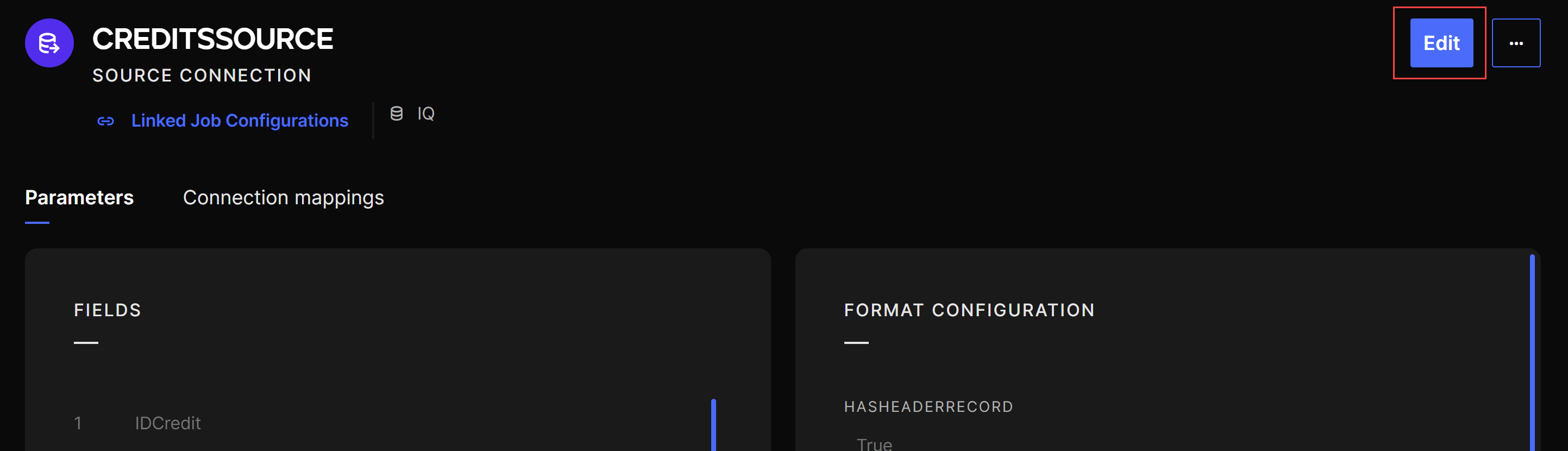
In order to modify an existing Source Data, you can navigate to the Source Data using the method described in the section above. You can easily change its fields and format configuration using the Edit button.
Edit button

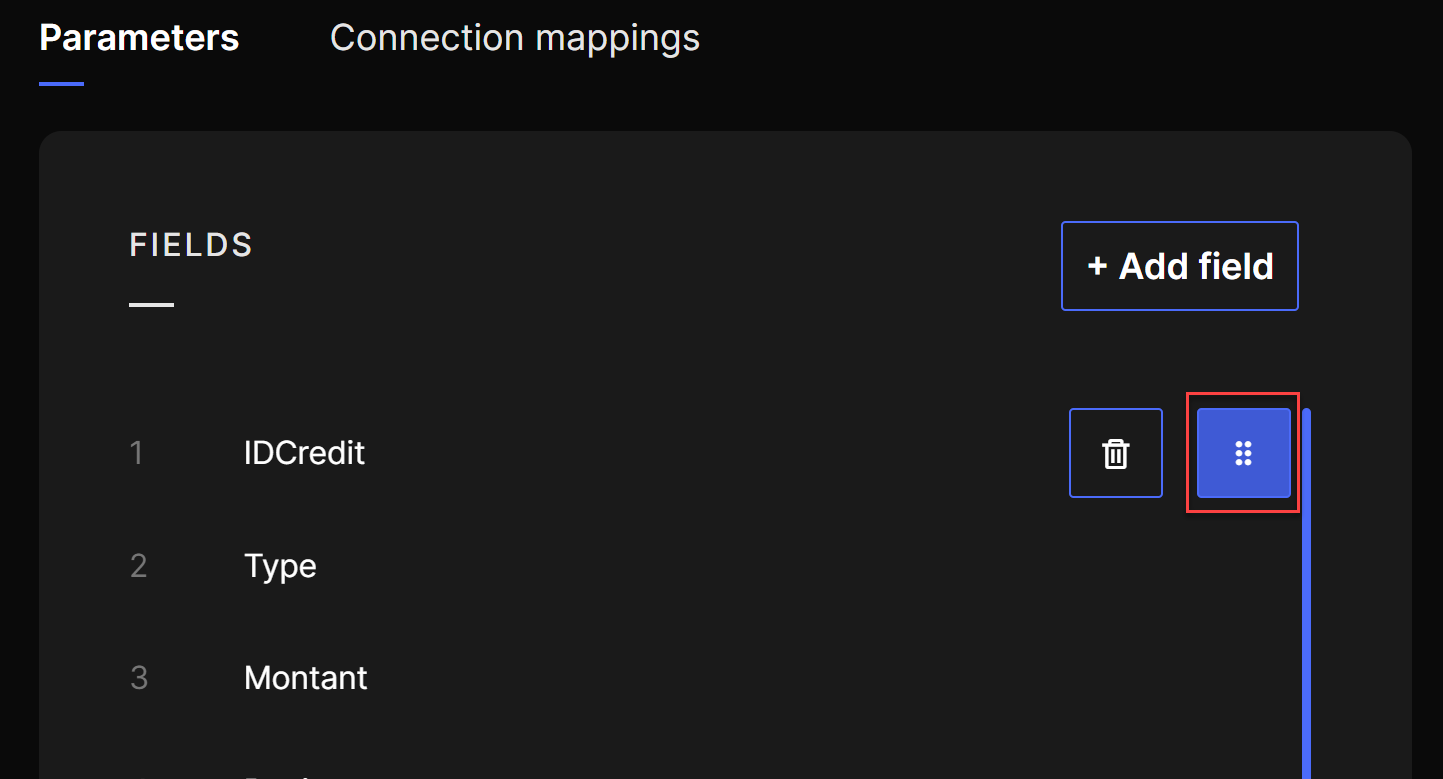
When editing fields, you can add new fields, modify existing ones (change value or order) and delete fields. In order to change the order of fields, you can use the button showed below and drag and drop the field.
Modify field order
You can also edit the general information of the Source Data using the option in the "..." menu.
Create a new Source Data
In order to create a new Source Data, you can click on the Create Source Data button in the Source Data section.
Create Source Data button

- Information: this step allows you to configure the name and description of the source data. This will help you identify the source data but can easily be updated after creation.
- Data connection use: you can choose here for which QuartzX application you will be using the data.
- IQ: this option allows you to retrieve data to be used within the QuartzIQ application.
- SystemData: this option allows you to retrieve data to be used within all other QuartzX applications.
- Data connection format: in this step, you can specify the format of the source data.
- SQL: this options allows you to create a source data for all types of Forwarder excluding files.
- CSV: this options allows you to create a source data for an Integration agent of type file for a CSV format.
- XML: this options allows you to create a source data for a Integration agent of type file for a XML format.
Each source data has a set of fields that should match the fields of the data that is retrieved by the forwarder agent (for example, if you retrieve data from an SQL table, the source data should have a field per column). In order to finalize the creation of your source data, you must now add all the fields for your source data and the format configuration. In order to to this, you can use the Edit button.
Edit button
When editing fields, you can add new fields, modify existing ones (change value or order) and delete fields. In order to change the order of fields, you can use the button showed below and drag and drop the field.