Connection Mappings
A Connection Mapping defines the mapping between Source Connections and Target Connections. This allows you to specify which Source Connection should load into which Target Connections, and the different fields that you want to use to load data. You can map a Source Connection with one or multiple Target Connections, and you can also map one Target Connection with multiple Source Connections.
This article only explains how to create a Connection Mapping. In order to load data into our applications, more configuration is necessary. For more information, please refer to this article.
In order to view and configure Target Connections in QuartzAdmin, you must have the required application roles:
- QX-Admin
- IQ-Admin (only if you want to create Source and Target Connections in order to input data for QuartzIQ)
View all Connection Mappings Modify a Connection Mapping Create a new Connection Mapping
View all Connection Mappings
Navigate through the side menu in QuartzAdmin and select Data Integration > Connection Mappings.
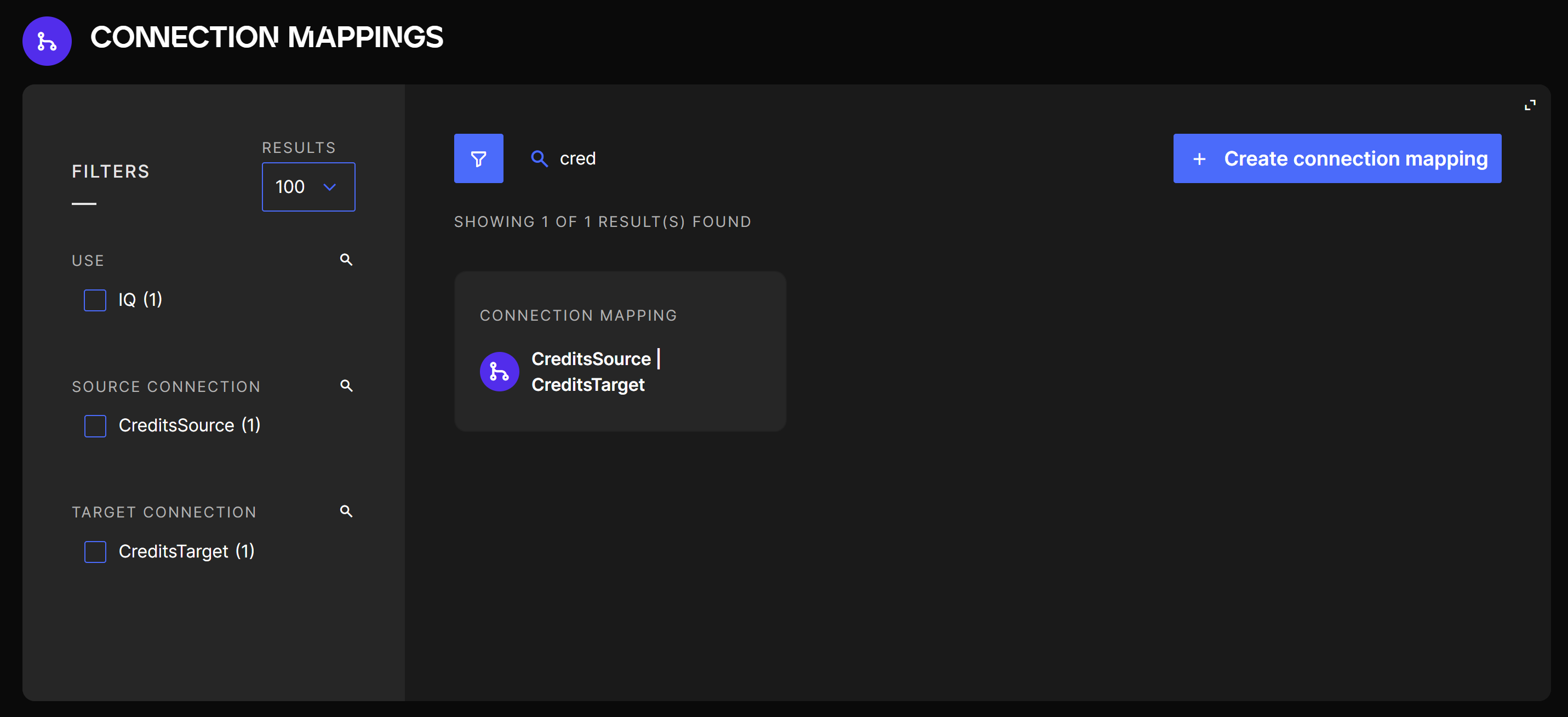
You should now see a list of all Connection Mappings already configured in the application. You can also use filters to find a specific Connection Mapping or use the search bar to search by name (each Connection Mapping contains the name of the Source Connection and the Target Connection).
Connection Mappings list
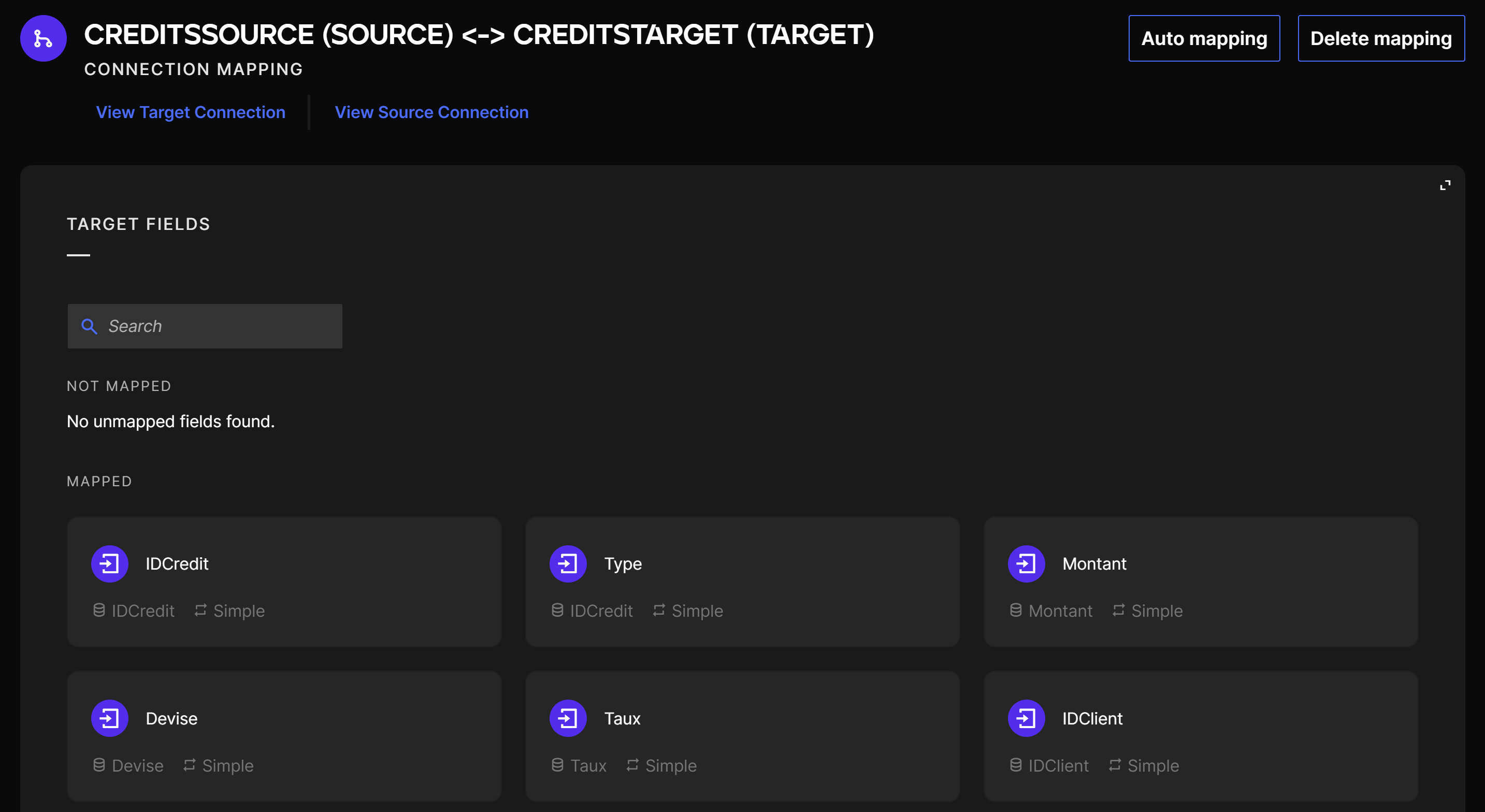
You can click on any Connection Mapping to see its' details. On this page, you can see the Source and Target Connections as well as the different kind of field mappings for each Target Connection fields.
Connection Mapping details
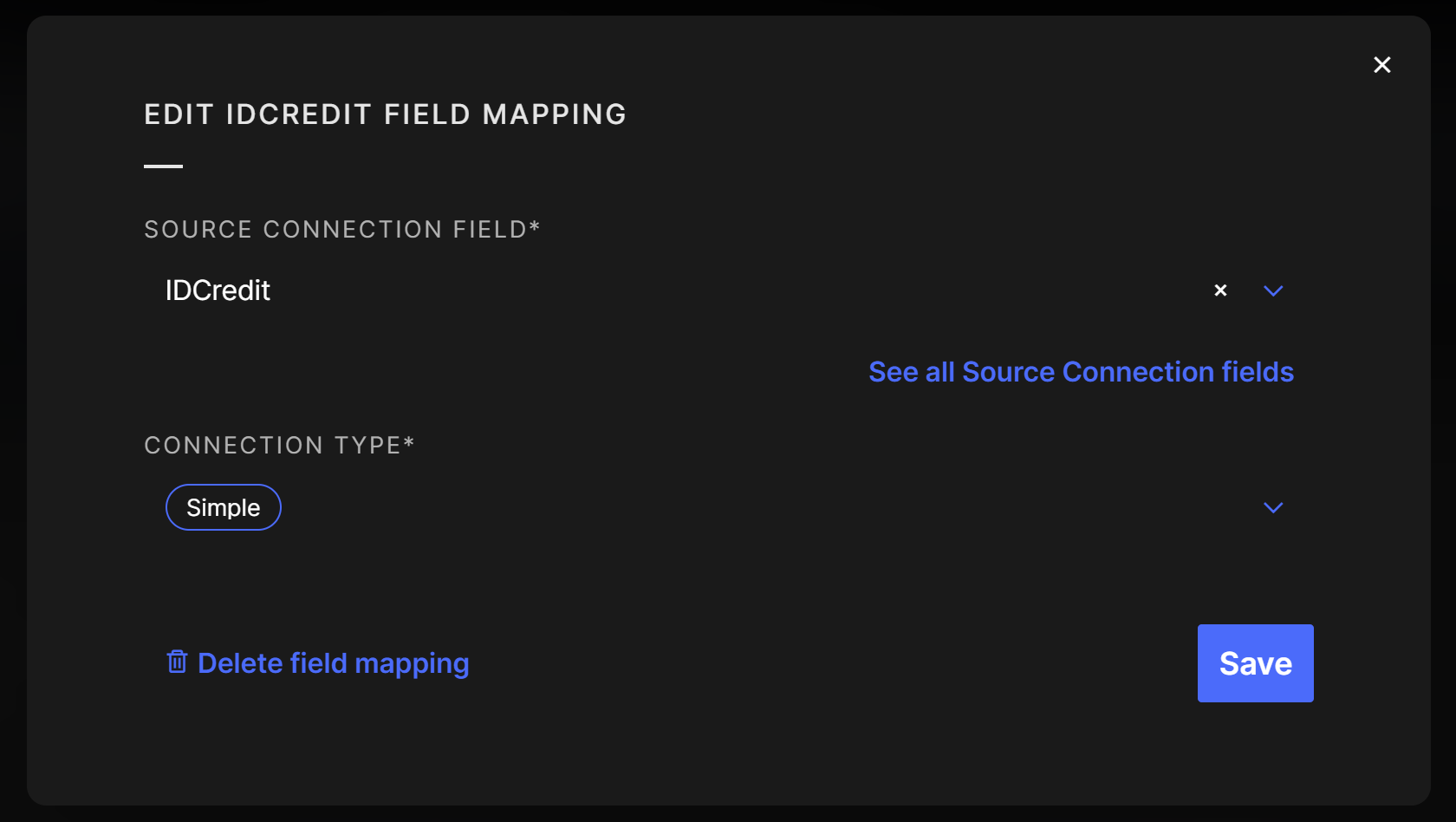
For each field mapping, you can also click on it to view the details. This mapping specifies from which field of the Source Connection you want to load data in the specified Target Connection field.
Field mapping details
Modify a Connection Mapping
In order to modify an existing Connection Mapping, you can navigate to the Connection Mapping using the method described in the section above. You can then modify each field mapping by clicking on it or create new field mappings for Target Connection fields that have not been already mapped. You can also use the Auto mapping button to Auto map fields that have the same names.
Create a new Connection Mapping
Navigate through the side menu in QuartzAdmin and select Data Integration > Connection Mappings.
Create Connection Mapping
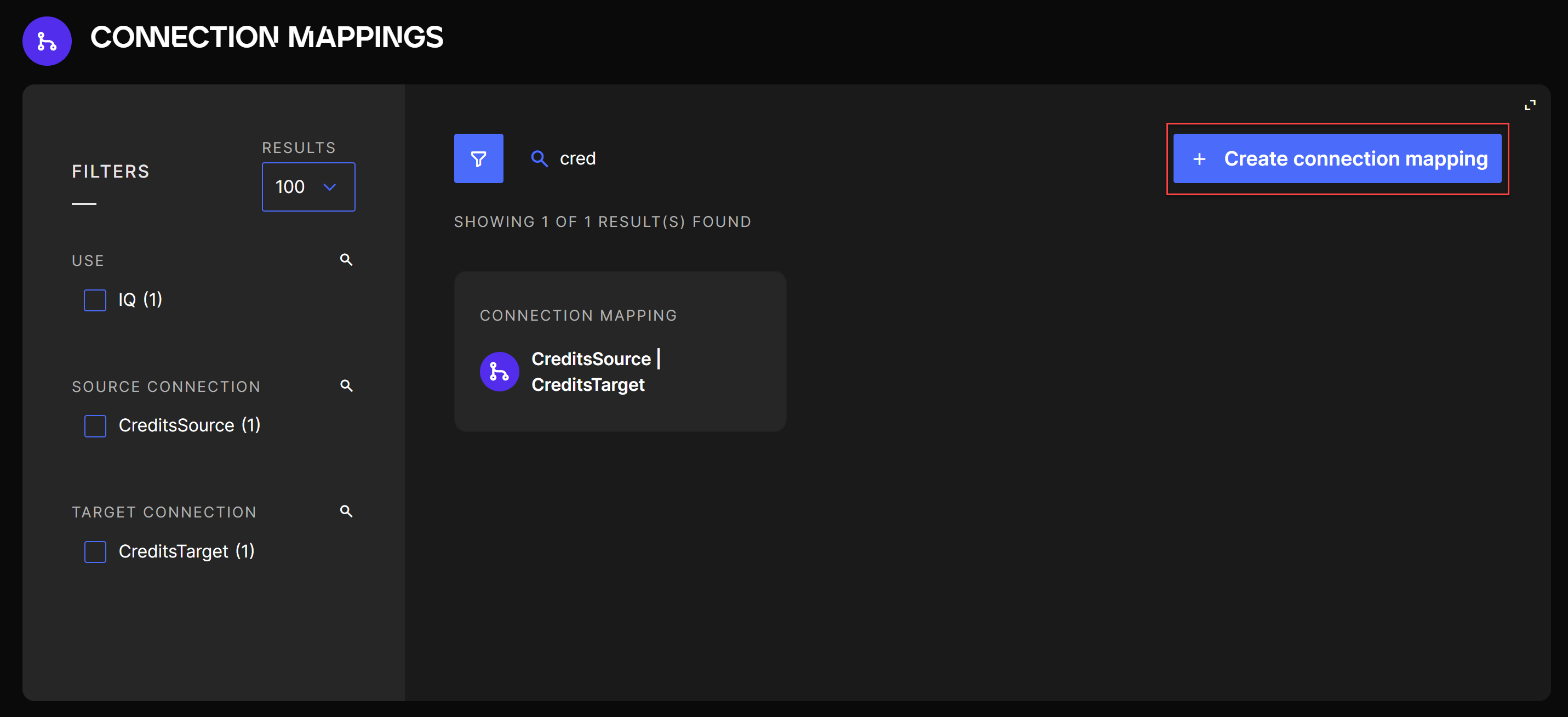
The creation button will prompt you with a pop up where you can select the Target Connection and Source Connection on which you want to create the mapping.
You can only create one mapping for the same Target Connection and Source Connection (each pair is unique), but you can map a Source Connection with one or multiple Target Connections, and you can also map one Target Connection with multiple Source Connections.
Creation Connection Mapping prompt
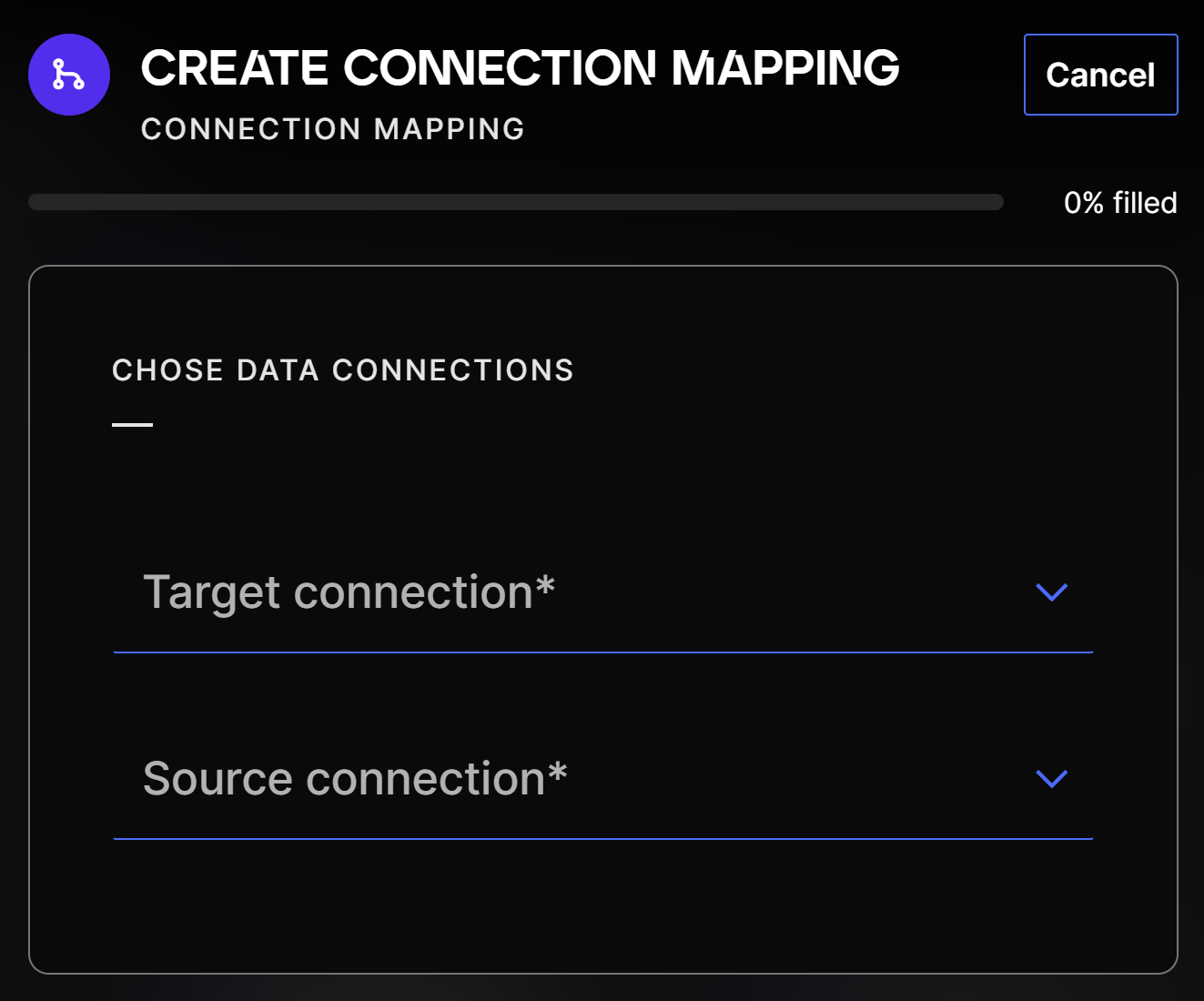
You will then be redirected to the Connection Mapping you created where all the Target Connection fields are displayed.
Connection Mapping details page
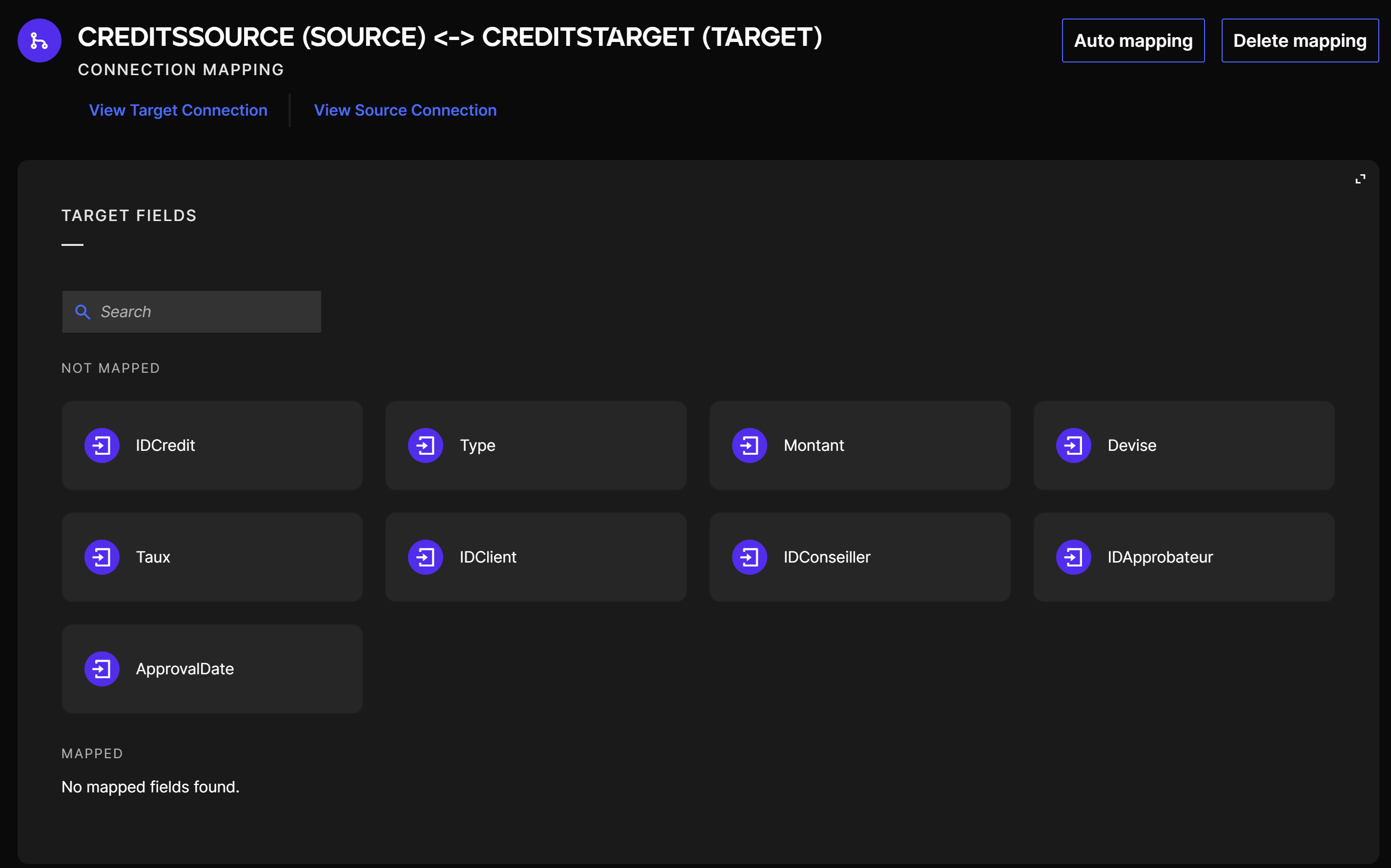
You can then click on any Target Connection field to create, modify or delete a mapping between the Target Connection field and the Source Connection field. You can create different types of field mappings:
- Simple: this field mapping loads the data from the Source Connection field directly into the Target Connection field without any transformation.
- XRef: this field mapping allows you to transform data between the loading of the data of the Source Connection field into the Target connection field by using a cross reference from another table.
You can also use the Auto mapping button to Auto map fields that have the same names using simple mapping types.