Audit Management
The Audit Management module allows you to plan and conduct internal or external audit engagements within QuartzIQ. For each audit, you can document Findings (Observations), formulate Recommendations, define Action Plans with responsible owners and deadlines, and attach Deliverables as evidence. The full hierarchy — Audit > Observation > Recommendation > Action Plan > Deliverable — provides end-to-end traceability from audit findings to remediation.
- Managing audit mandates
- Managing observations
- Managing recommendations
- Managing action plans
- Managing deliverables
Managing audit mandates
An audit mandate represents a planned audit engagement, defined by a fiscal year and a time window. It serves as the top-level container for all findings and follow-up items.
Creating an audit mandate
To create a new audit mandate:
- Navigate to the Audit & Testing section from the side menu;
- Click the Create audit and testing project button;
- Fill in the required information:
- Title — a clear name identifying the audit engagement;
- Fiscal year — select the relevant fiscal year from the drop-down list;
- Start date, End date, and Presentation date;
- Overall rating — select a rating from the drop-down list;
- Lead auditor — assign the person responsible for the audit;
- Toggle Is active to activate the mandate;
- Click Save.
Finding and editing an audit mandate
From the Audit & Testing main list, you can see all audit and testing projects with their key information (period, deadline, status). Use the filters on the left to narrow down results by Team Member or Status, and the search bar at the top to find a specific project.
Audit & Testing Projects list
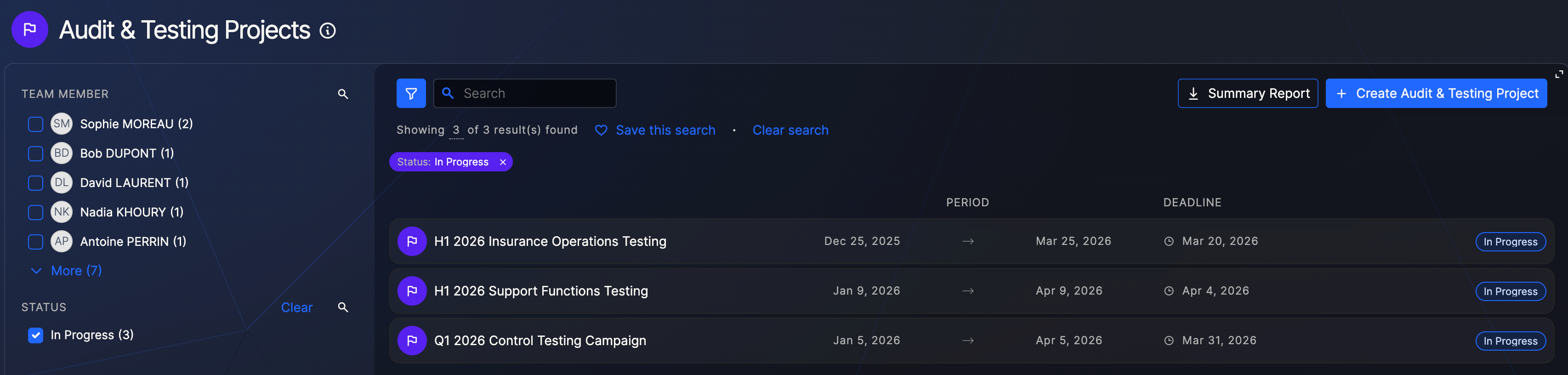
Click on any audit mandate to open its detailed view and edit its fields.
Linking controls to an audit mandate
From an audit mandate's detailed view, click Add related controls to link existing controls with the audit. This allows you to trace which controls are being evaluated as part of the audit. To remove a control, click the Unlink button on the corresponding control.
Managing observations
Observations (or findings) represent issues or areas of concern identified during an audit. They are always linked to an audit mandate.
Creating an observation
- Open an audit mandate's detailed view;
- Click Add in the Observations section;
- Fill in the required fields:
- Description (mandatory) — describe what was observed;
- Impacts — describe the potential impact of the observation.
Finding and editing an observation
Once created, observations appear in the audit mandate's detailed view. Click on any observation to open its detail and edit its fields.
You can also link controls to an observation from its detailed view, using the same process as for audit mandates.
Deleting an observation
From the observation's detailed view, click Delete in the top-right corner.
An observation can only be deleted if no recommendations are linked to it.
Managing recommendations
Recommendations are the corrective or preventive measures proposed in response to an observation. They are always linked to an observation.
Creating a recommendation
- Open an observation's detailed view;
- Click Add in the Recommendations section;
- Fill in the required fields:
- Name and Summary;
- Recommendation owner(s) — the person(s) responsible for implementing the recommendation;
- Type — select from the drop-down list;
- Priority — select the priority level.
You can also assign an owner delegate and enable Handled by project if the recommendation should be managed through a project workflow.
Accessing the recommendation list
Navigate to the Recommendations section from the side menu to see all recommendations across all audits, with their key details and current status.
Editing a recommendation
Click on a recommendation to open its detailed view. The screen is organized into sections:
- Header — edit the title, owner(s), and delegate;
- Recommendation section — update the summary and additional details;
- Notes section — add notes and attachments for additional context.
Deleting a recommendation
From the recommendation's detailed view, click Delete in the top-right corner.
A recommendation can only be deleted if no action plans are linked to it.
Managing action plans
Action plans describe the concrete steps to address a recommendation. They are always linked to a recommendation and define who is responsible, what needs to be done, and by when.
Creating an action plan
You can create an action plan in two ways:
- From the recommendation list, click Add action plan on the relevant recommendation;
- From a recommendation's detailed view, click Add in the Action Plans section.
Fill in the required fields:
- Name and Description (mandatory);
- Owner and Owner delegate (optional);
- Target date — the deadline for completion;
- Action plan tags — select from the drop-down list for categorization.
Accessing the action plan list
Navigate to the Action Plans section from the side menu to see all action plans across all recommendations, with their key details and current status.
Editing an action plan
Click on an action plan to open its detailed view:
- Header — edit the title, owner(s), delegate, and target date;
- Action plan section — update the description and tags.
Deleting an action plan
From the action plan's detailed view, click Delete in the top-right corner.
An action plan can only be deleted if no deliverables are linked to it.
Managing deliverables
Deliverables are the tangible outputs or evidence produced as part of an action plan. They demonstrate that the planned actions have been completed.
Creating a deliverable
- Open an action plan's detailed view;
- Click Add in the Deliverables section;
- Fill in the required fields:
- Name and Description (mandatory);
- Target date (optional) — the expected delivery date.
Finding and editing a deliverable
Once created, deliverables appear in the action plan's detailed view. Click on any deliverable to open its detail and update its fields.
Deleting a deliverable
From the deliverable's detailed view, click Delete.