Perimeters
Perimeters are used to delineate the needs of a department, sub-department or even a small team and to limit access to the people involved.
In your organization for example you can use one Perimeter for the whole Human Resources department or you can decide to split the various activities of the department into 3 Perimeters (Compensation, Recruitment, Development). Within the Compensation team, the Payroll sub-team can choose to have its own Perimeter for confidentiality matters.
View all Perimeters Create a Perimeter View a Perimeter Modify people involved Add/modify data source
View all Perimeters
To view Perimeters, click on Controls & Risks / Perimeters.
Accessing Perimeters
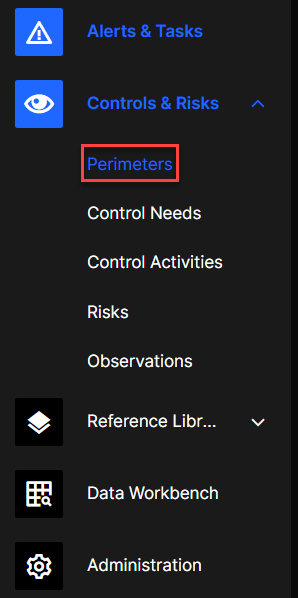
From the Perimeter page you can see all of the Perimeters for which you are Owner, Delegate, Data Manager or Performer. If you have an IQ-Admin and/or QX-Superadmin application role(s) you will see all the Perimeters of your organization.
Perimeter page
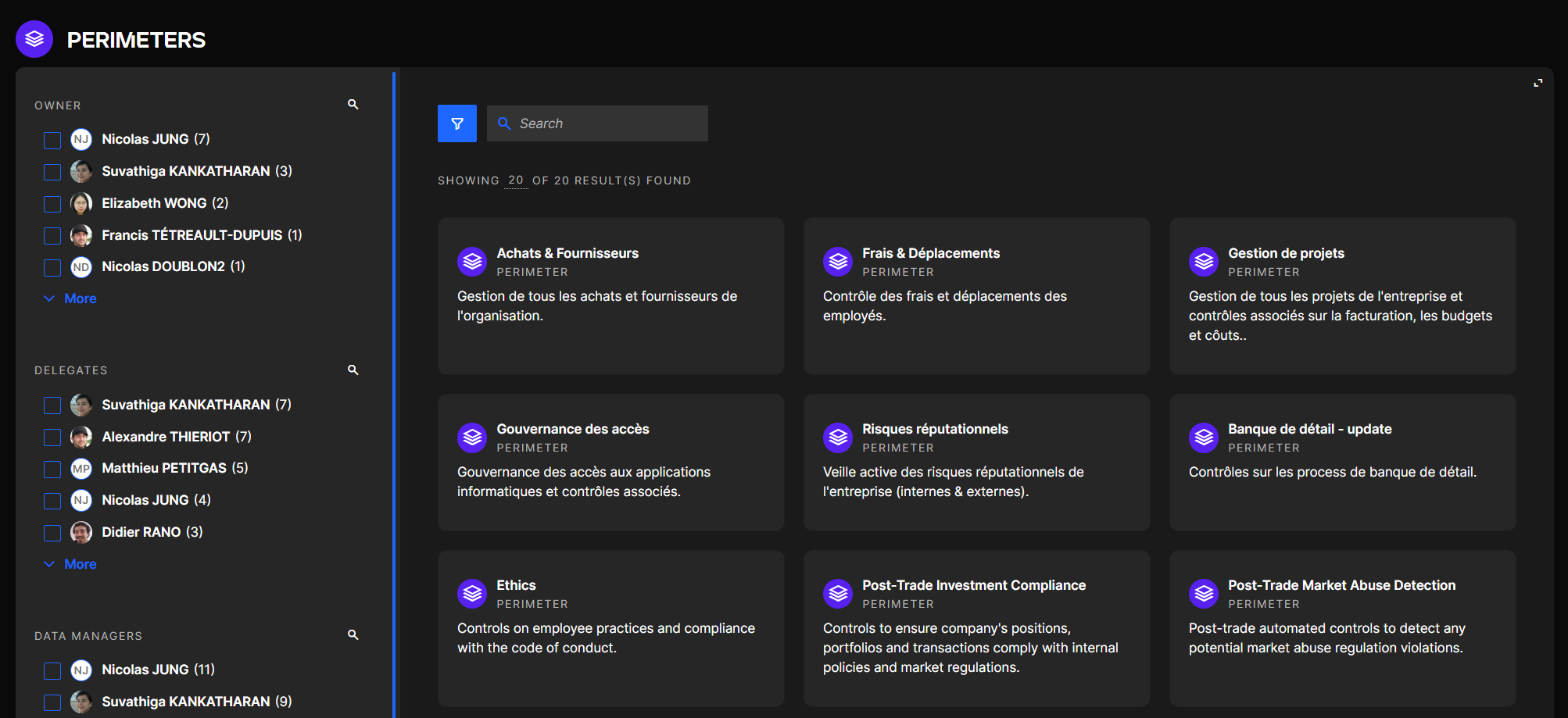
You can look for a specific Perimeter with preset criteria by using the filters or with keywords by using the search bar.
Create a Perimeter
In order to configure Perimeters in QuartzIQ, you must have the IQ-Admin application role.
If you do not have the required application role, please contact your administrator.
Step 1
To create a Perimeter click on the Create button on the top right hand side of the screen and select Perimeter:
Creating a Perimeter

Step 2
After you click the button, a form should appear. The form should contain 5 sections to fill out before the Perimeter can be saved.
Perimeter form
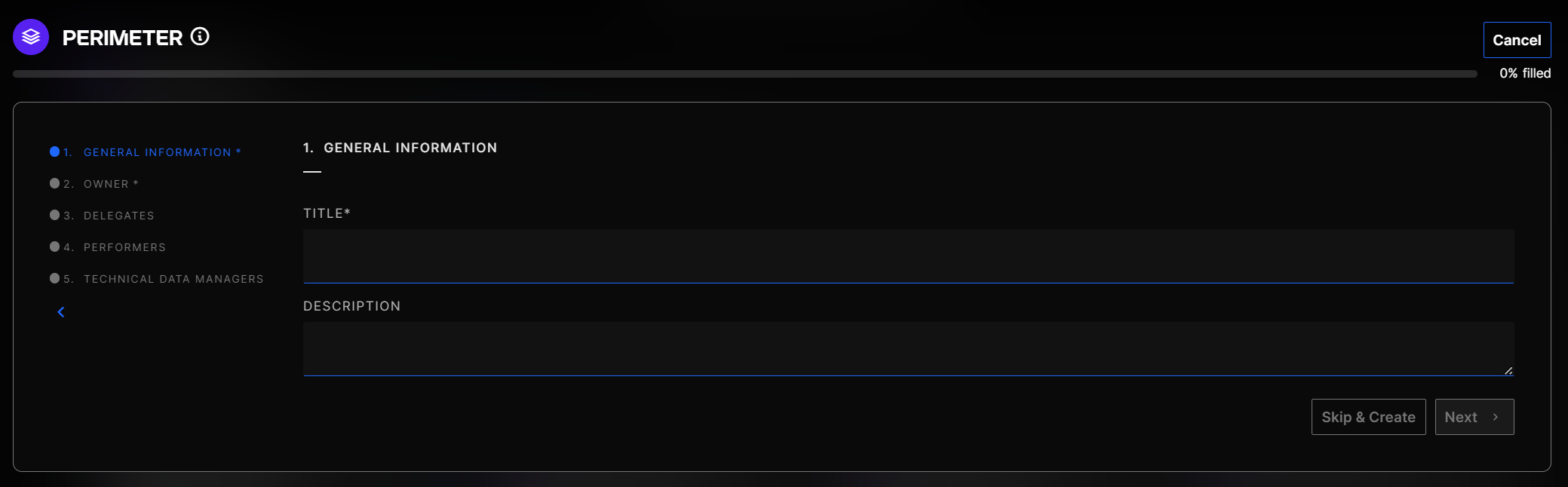
After completing the first section, you will need to determine who the Owner, Delegates, Technical Data Managers, and Performers are. The definition of the first 3 roles requires the 4-eye review of a QX-Superadmin.
You can review the Modify people involved section to obtain more details on each role.
Step 3 Once all of the required fields have been completed, you can click the Save button.
Save Button on Perimeter form
View a Perimeter
To view a Perimeter, you can click its box in the Perimeter section. Once you open a Perimeter, you should be able to display its statistics, modify its settings, and see the Control Needs and Control Activities it contains.
Clicking a Perimeter
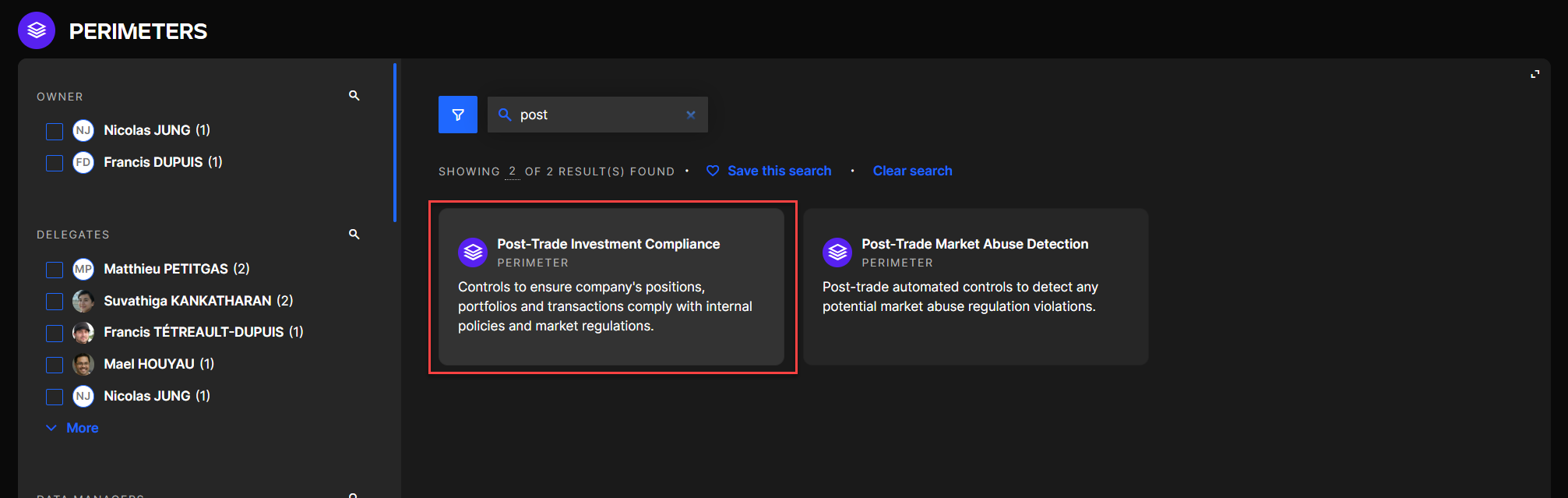
Once you are in a Perimeter, you should be able to access 3 tabs: Dashboard, Control Needs, and Control Activities. You can also see the list of Owners, Delegates, Data Managers, Performers, and the settings.
Perimeter dashboard
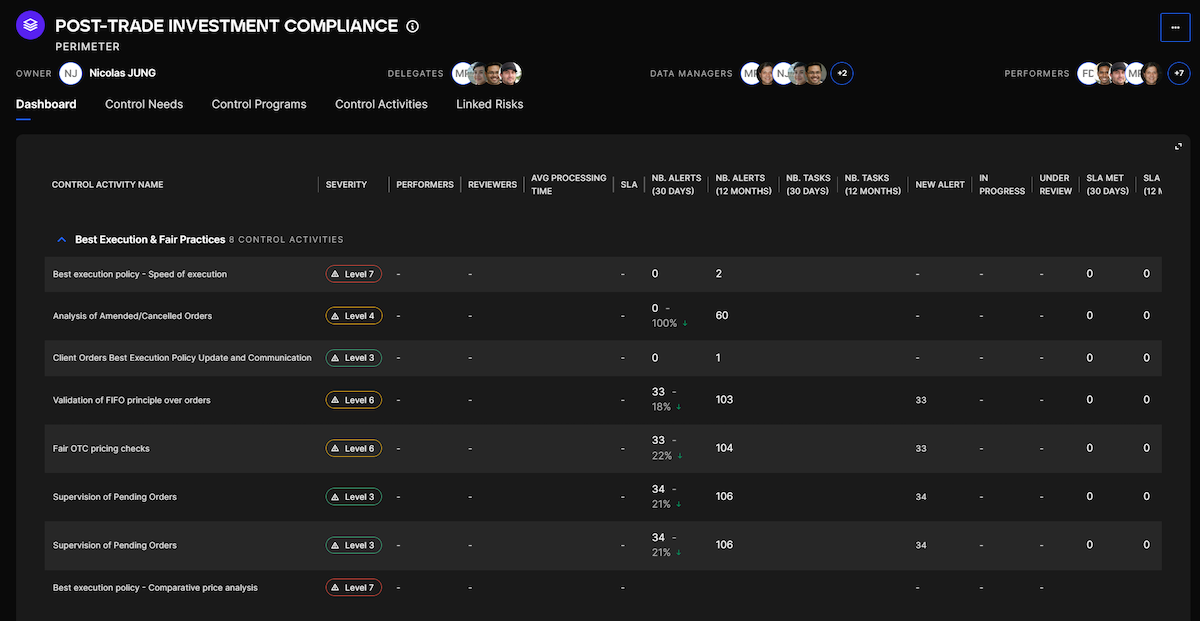
The dashboard tab gives statistics and important information on the various Control Activities contained in the Perimeter.
The settings tab gives access to multiple actions.
Settings menu opened
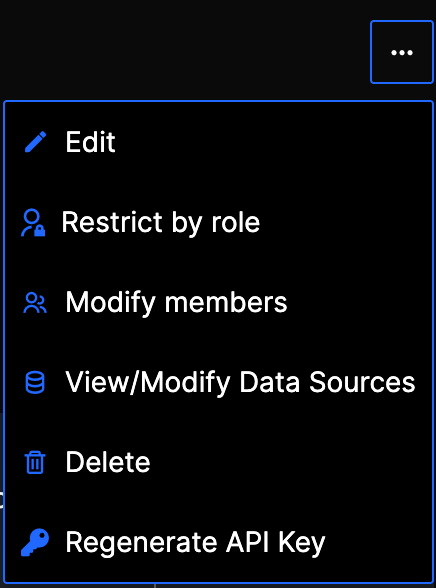
- Edit : Modify the Perimeter title and description.
- Restrict by role: With this option, you can restrict access to the Perimeter, Control Needs, Control Activities, and Alerts and Tasks within the Perimeter to users who have the required custom role.
- Modify members : see the detailed section below.
- View/Modify Data Sources: see the detailed section below.
- Delete: You can only delete a Perimeter if its Control Activities have issued no Alert or Task so far.
Modify people involved
Here are the different actions every role can take:
- Owners & Delegates: can modify the perimeters members (Performers, Data Managers...), can create and modify Control (but cannot manage the configuration of an alert rule), Control Needs, Associate Risk can define default Performers and default Reviewers in Control Activities.
- Technical Data Managers: can create and modify Controls, and manage their configuration (KQL query, data sources, data quality logic...).
- Performers: Performers are able to see the Control Needs and Control Activities of their Perimeter(s) and are the only persons who can take actions on their Alerts and Tasks.
- Risk Assessor : Can perfom RCSA if the perimeter is included in the process
You can modify the roles that were previously set during the creation of the Perimeter.
''Modify people involved'' button in any Perimeter
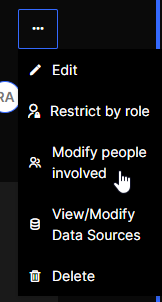
Once you click on the button, you can see the current Owner, Delegates, Data Managers and Performers, you can add or delete someone to/from this list, and you can see if some role change approvals are pending.
People involved menu
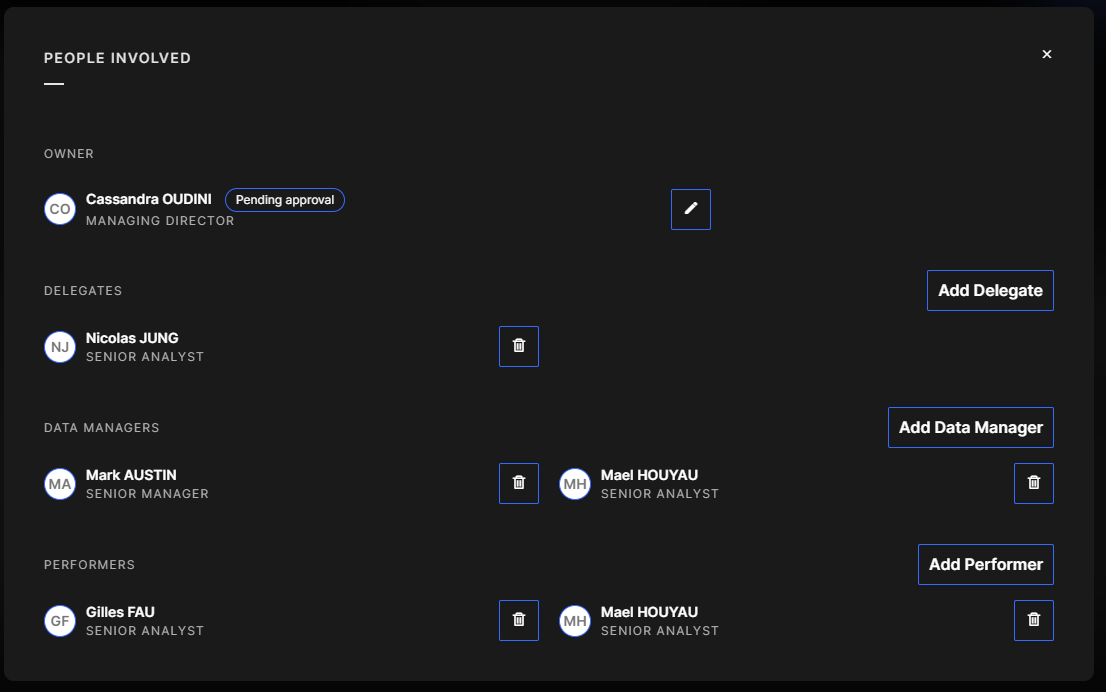
Any additional Owner, Delegate or Data Manager must be approved by a QX-Superadmin. The IQ-Admin role is the only one that can modify the people involved.
You do not need the IQ-Admin role to add/delete Performers but you must be an Owner or Delegate in the Perimeter in question.
Add/modify data source
"View/Modify Data Sources" button in any Perimeter
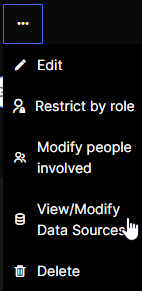
The data sources you define here will map your Perimeter with Target Connections that were previously setup in QuartzAdmin, and thus allow the creation of KQL alert rules.
The addition or modification of a data source requires that you have the IQ-Admin role and it then requires the approval of a QX-Superadmin to be validated.