Control Programs
What are Control Programs?
Control Programs are structured sets of requirements, risks, and controls designed to help organizations implement, manage, and track internal controls across various departments and business units (represented using your Perimeters).
These programs are essential for ensuring that risks are mitigated and that the organization complies with both internal standards and external regulations.
In QuartzIQ, you will find two types of Control Programs:
- Standard Control Programs: Control Programs that we provide with the platform, that align with widely recognized industry frameworks and regulatory requirements (e.g., NIST, COBIT, or industry-specific regulations). In some of these Control Programs, we also provide ready-to-use controls. In these cases, the program ensures your organization adheres to external standards and achieves compliance.
- Custom Control Programs: Custom frameworks developed to address the specific risks and operational needs of your organization (Internal Control Frameworks). These frameworks allow you to standardize and streamline risk mitigation efforts across all Perimeters while maintaining a consistent approach to control implementation. By deploying these frameworks across your organization, you can continuously monitor the effectiveness of your controls and track compliance efforts.
Viewing all Control Programs
We provide all Control Programs, Standard and Custom, in a centralized library called the Reference Library. This allows a subset of users to access and also manage these frameworks for the whole organization.
In order to view Control Programs, you must have the iq-referencelibrary-reader role.
Navigate to the Reference Library > Control Programs section in the side menu. From there, you will see a list of all Control Programs.
As stated above, there are standard but also custom Control Programs depending on if they are shipped with QuartzIQ as frameworks or regulations (standard), or if they have been created for your organization (custom). You can easily filter them using the filters panel on the left.
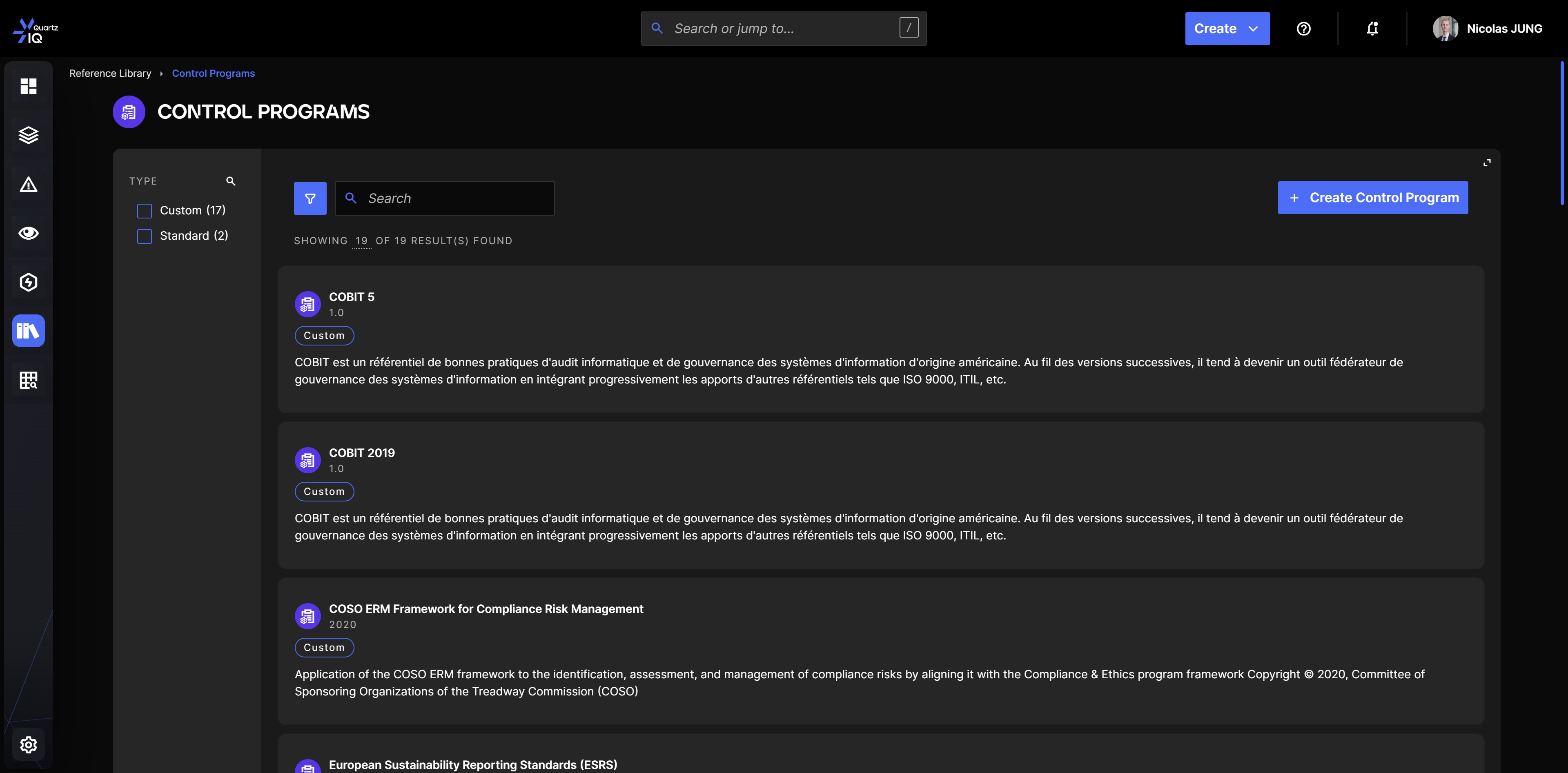
When clicking on a Control Program, you will be able to access its details where you will see a list of all its requirements. Under each requirement, you will also see any Risks or Controls that have been linked to this requirement.
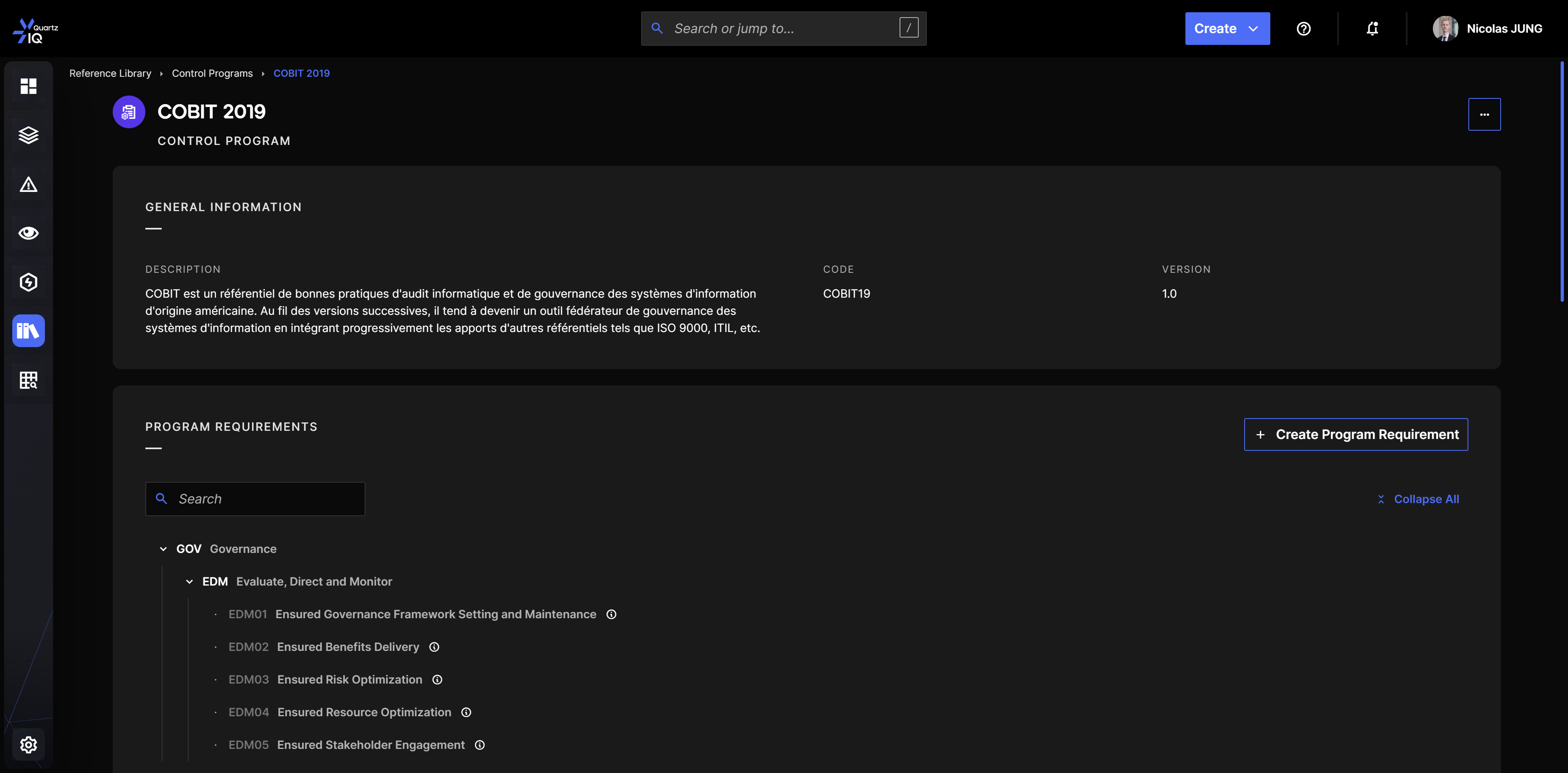
Controls linked in the Reference Library are called Suggested Controls. These are Control Templates that can be used across your organization when deploying the Control Program. This allows you to standardize control implementation for this requirement.
For standard Control Programs, you can also see Suggested Controls which are ready-to-use Controls containing KQL scripts, allowing you to easily and quickly implement Controls for these frameworks or regulations.
Creating a new Control Program
If you want to standardize and streamline risk mitigation efforts across all your Perimeters, and/or also provide a standard way of implementing controls for these risk mitigation efforts, you might want to create custom Control Programs.
To create custom Control Programs, you must have the iq-referencelibrary-manager role.
You can create new Control Programs by going to the Reference Library > Control Programs section in the side menu. You can then use the Create Control Program button.
You will be prompted for information such as:
- Title: the title of your Control Program.
- Code: the code of your Control Program. This must be unique and is used to easily search for your Control Program.
- Version: the version of your program. This allows you to create another version in the future (what we recommend doing if your internal control framework changes).
- Requirement level: this parameter sets the depth of the requirements you want to use. This allows you to create groups of requirements to categorize sub requirements. We typically see 2 or 3 levels of depth for Control Programs.
- Description: a description of your Control Program.
After creating your Control Program, you will be redirected to its details page where you will be able to create requirements, link Controls and link Risks.
Creating Requirements
From the Control Program's details page, you can click on the Create Program Requirement button.
This will prompt you with the following information:
- Title: the title of your requirement. This is what will be shown as the requirement.
- Code: code of the requirement. This is useful to easily filter requirements.
- Order: This allows you to modify the order of display of the requirements.
- Parent Program Requirement: if you leave this empty, it will create a parent requirement (level 0). If you choose a parent, it will create a child requirement (level depending on the parent's level). You can only select the levels corresponding to the Requirement level configuration that you have set for your Control Program. You can also create multiple child requirements for one single parent requirement.
- Description: a description of your requirement. This is visible in a tooltip next to your requirement's title.
After creating the requirement, you can also edit its information.
Linking Risks to Requirements
Once you have created your requirements, you can link Risks from your Risk Taxonomy to your Requirements in your Control Program.
On each requirement (deepest level), you can use the Link Risk button. You will then be able to select one or multiple Risks from your taxonomy.
This feature requires you to have your Risk Taxonomy set up. For more information on how to set up your Risk Taxonomy, you can view the Risk Taxonomy article.
Creating and linking Suggested Controls to Requirements
You can also decide to create and link Suggested Controls to Requirements. This allows you to have a standardized approach on how to implement a Control for the requirement in your organization.
On each requirement, you can use the Add Suggested Control button. You have the option to add an existing Suggested Control or create a new one. You will be prompted with a selection of the type of Control and also its configuration details.
For more information on how to create Controls, you can view the Control Activities article. It explains the different types of Controls, how to create new ones and also set up automated controls.
After adding the Suggested Control, you will be able to view its details and modify it. When applying the Control Program to Perimeters, they will be able to use these suggested Controls.
Deploying Control Programs to Perimeters
You can deploy Control Programs to Perimeters to follow their implementation and have a percentage of completion in each Perimeter.
To apply a Control Program in a Perimeter, you must be an Owner or Delegate in the specific Perimeter.
In order to deploy a Control Program to a Perimeter, navigate to the Perimeter in which you want to apply the Control Program by navigating to the Perimeters section in the side menu.
In the Control Programs tab, you can click on the Apply Control Program button. You will then be prompted with a Control Program selection.
If Risks are linked to requirements of the Control Program in the Reference Library, they will automatically be added and linked to the Perimeter in which you applied the Control Program.
After selecting the Control Program and applying it, you will be able to view it by clicking on it.
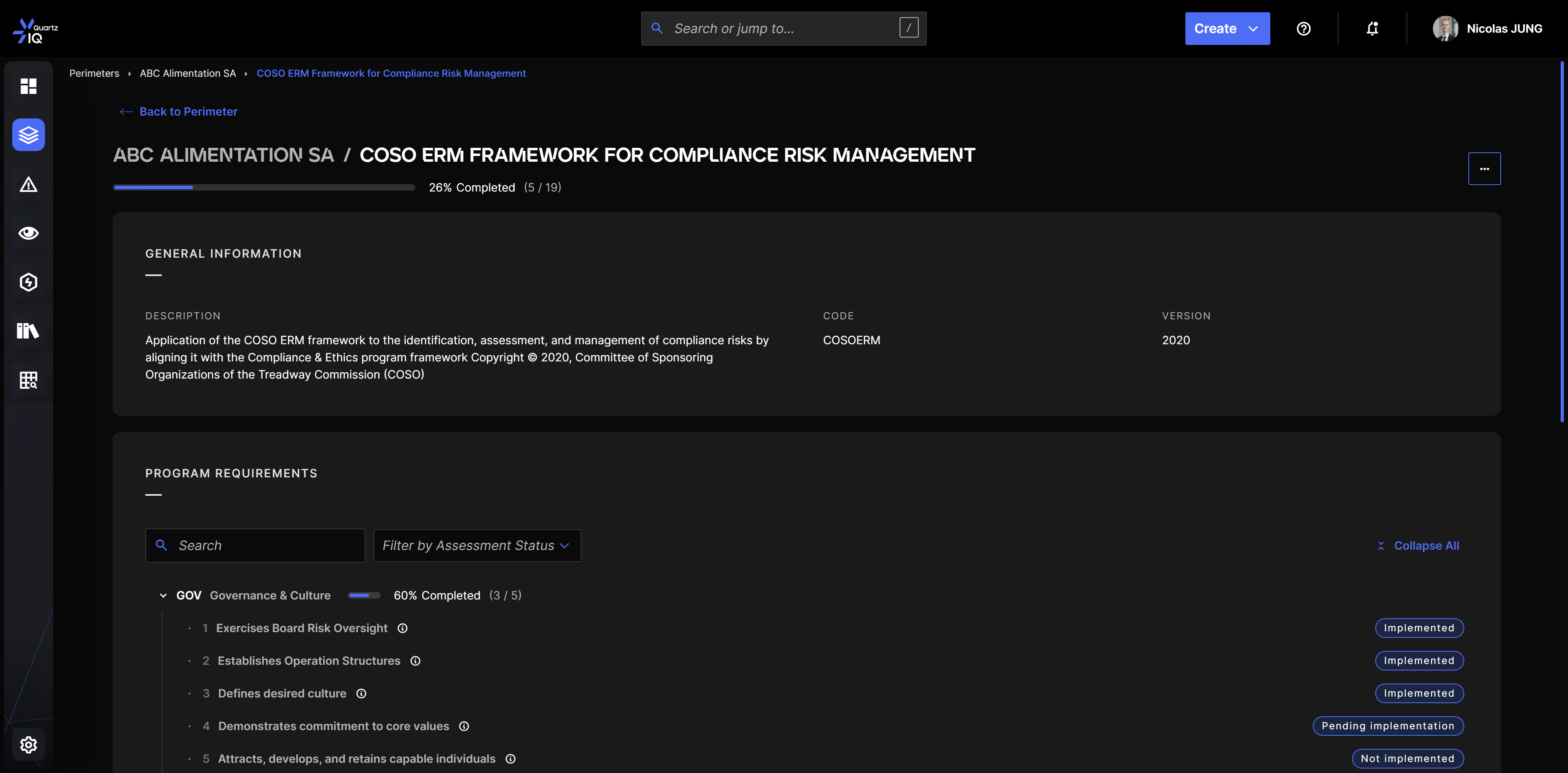
In this view, you will see the status of each requirement in a blue badge. You can easily edit the status by clicking on the badge for each requirement.
Linking Controls to Requirements
On each Requirement, you have the option to link a Control from your Perimeter. This allows you to easily map your Controls and see if you are missing any Controls for each requirement.
In order to link Controls, on each Requirement, you have a Link Control button. You will then be prompted with different options:
- Link existing Control from Perimeter: this allows you to link an existing Control from your Perimeter to your requirement. This is useful if you already documented your Controls beforehand.
- Create from a Suggested Control: you will see this option only if a Suggested Control was created and added to this Requirement in the Reference Library. This option allows you to use the specific Suggested Control as a template for a new Control.
- Create a blank Control: this option allows you to create a new Control from scratch.
For more information on how to create Controls, you can view the Control Activities article.